Building Reading Stamina with the iPad

Believe me, my children have more stamina than a power station.-Robbie Coltrane

Building stamina in young readers is definitely a challenge.  Their attention spans are short and their energy level is high.  It is important to know children well enough to link each of them to the texts that will sustain their interest, and won’t be so challenging they get discouraged.  Every good English language arts teacher knows that immersing students in reading is far more important than teaching test-taking strategies. Many are also familiar with some of the techniques for helping their students monitor their reading throughout a reading task. Some use specific lessons and strategies for helping students maintain focus and gain stamina as they read, but finding the best lessons and other resources for teaching such skills is often time-consuming and difficult, requiring more hours than teachers have for seeking out new material.

Using iPads has helped increase my students’ stamina even during the short 57 days we’ve been in school.  As students build confidence in reading short, leveled texts, they are more likely to venture into more difficult texts.  I use LAZ leveled reader apps and my own texts that I’ve created in iBooks Author to supplement the reading materials in class.  As students have a few minutes of free time, or they are in the book center, they have high interest texts to choose from on their iPads.  Having these books at their fingertips makes it easy for anytime reading.  Re-reading familiar texts also increases their fluency.

Another way to use iPads in building stamina is to celebrate progress. Without getting too caught up on the number of minutes spent reading, celebrate the time that is spent reading. Share your favorite parts of books read by reading out loud with a partner on the iPad.  Illustrate your favorite parts in the Pages app and share with your writing group.

Spending longer periods of time reading means fewer interruptions and more time reading what you love. iPads provide resources beyond your regular classroom materials to facilitate this.  As your students move into higher grades, having reading stamina will help them navigate the longer texts and assignments.

I’d love for you to leave a comment, subscribe to my blog, and/or share this post with a friend.

FAQ’s about iPads in the Classroom

An investment in knowledge pays the best interest. -Benjamin Franklin

We have had several visi
tors from other school districts over the past few months, interested in seeing iPads at work in the classroom.  From those visits and other questions posed on this blog, I am posting today some frequently asked questions. Hopefully it will help many of you as you navigate the early waters of incorporating iPads into your classroom.

  • How did you get the money to pay for the iPads?

My school district re-purposed funds that were originally designated for replacing computers in our classrooms.  These funds were for technology modernization and rather than purchase 2 computers per class, we piloted iPads.

  • iPads vs other hand-held tablets

Clearly, iPads is my answer.  They are game-changers. They are versatile, easy to use, backed by Apple and there are tons of educational apps available for use.  Having access to the internet is critical…these are more than just e-readers.

  • How often do you use the iPads each day?

All throughout the day for a variety of activities, small group, whole group, and individual. My main focus of use is to increase achievement in literacy.

  • What if the kids get tired of them or bored with them?

OK, seriously?  They are not toys.  They are learning tools that are essential to 21st century learning skills.  If teachers teach using best practices, kids will never be bored with them.

  • How do you get the work off of the iPads?

Legit question here…it’s not always been easy.  We are still unable to email from the iPads.  The best work around at this point for me is Simple Transfer app.  Anything that can be saved to the camera roll can be transferred off of the iPad.  My other option is PaperPort Anywhere.  My kids can save work to their folders on the PaperPort app.  I can access it, print, save or email work.  I’m excited that Pages now uploads to PaperPort!

  • How often do you have breakage or damage?

In 14 months of iPad usage with 3 different kindergarten classes: ZERO. They are very careful with them and I make sure we model and teach iPad procedures regularly.

  • What are your must-have apps?

Ah….these change as I come into new apps.  Currently, I love Montessori Crosswords (ELA), Park Math (Math), Pages, Book Creator, Simple Transfer, and Whiteboard. Oh…and Starfall.  Ok, making myself stop right there.

  • How often do you sync?

In the first few months of using them, A LOT.  I was constantly finding new apps and was a syncing mad woman.  Currently, not so much.  I will sync books or photos if I want them all to have them.  I use my class wiki to get work to student iPads and they then upload to PaperPort to get them back to me.

  • What do you like most about iPads in the classroom?

What’s not to love? I can’t imagine ever teaching without them.  They take learning to a whole new level with personalized instruction.  Being able to meet each student where they are instructionally is priceless.  With 25-30 students each year, I need all of the instructional support I can get.  iPads make it possible to differentiate instruction every day.

  • Are there any drawbacks?

As to the use of the iPads: absolutely none.  The only thing that could be a drawback is the cost of apps when you multiply it out over an entire class or school.  Get your PTA involved.  Hold fundraisers, donate blood (kidding, sort of) whatever it takes to bring in some extra money for those apps.

So there you are…hopefully this provided some insight into using iPads in a 1:1 classroom.  It can seem overwhelming, but it really is manageable.  My students, even at age 5, are quite capable with these devices.  The investment is worth the cost to reach every learner every day.

I’d love for you to leave a comment, subscribe to my blog, and/or share this post with a friend.

Doodle Buddy and Science Drawings

Touch a scientist and you touch a child.-Ray Bradbury

October and November are great months in the South.  Fall and cooler weather are a nice respite from the stifling hot Charleston summers.  It is also a great opportunity to explore fall and harvest in science.  There are many ways to create science journals on the iPad.  You can use Pages, whiteboard apps, or any number of drawing apps.  We’ve been using Doodle Buddy.  It is a free drawing app.  My students can create a drawing and save to their photo roll.  Once created, they can then import the drawing into their writing.  We like to import into Pages as well as Book Creator.

Here is an example of one child’s science journal.  We were discussing pumpkin life cycles.  After reading a book, From Seed to Pumpkin, many students wanted to draw the life cycle in their Doodle Buddy app.  From this, the child can type directly on the drawing with the keyboard or he can import it into Pages or Book Creator.  Each stage of the life cycle could be broken down into one page each, with this image above being used as the culminating page.  This is a great sequencing activity as well.

When I introduced Doodle Buddy, I connected my iPad to the SmartBoard and demonstrated how to use the app and how to save the drawing.  It is very simple to use and my students caught on immediately.  It always amazes me how engaged they are when they are creating on the iPad.  Their language was rich with inquiry and science vocabulary.  After creating, they love to share.  When they create, they are more likely to internalize important concepts.  Critical thinking is occurring.  There was no doubt in my mind after looking at their diagrams that they understood this plant life cycle concept.

By having these drawings on their iPads, they are also able to re-visit their work and add to it if interested.  Learning is extended and interest is maintained.  Even though it is still early in the school year for these young scientists, their enthusiasm for science is evident.

I’d love for you to leave a comment, subscribe to my blog, and/or share this post with a friend.

Classroom Wikis and iPads

If you have knowledge, let others light their candles in it. -Margaret Fuller

Wikis are tools for taking student and teacher collaboration to the next level.  The most famous wiki is Wikipedia, an online encyclopedia created by users from around the globe. Wikis are also increasingly being used by the corporate world.   eBay recently added wikis to its auction site so members can coauthor articles about buying and selling. Not surprisingly, K-12 schools are also taking advantage of the opportunities for “collaborative construction” that wikis provide.

I have used Wikispaces to create a free class wiki for my students. Wikispaces is free for K-12 educators and is free of advertising.  It is also user friendly and a good place to start if you haven’t used wikis before.   I simply upload PDF documents to the wiki for my students.  They have a shortcut to the wiki on their iPads.  One touch takes them to the wiki and they are able to download the document into our DocAS app.  Any PDF annotating app can be used.  My students can complete an assignment,  math practice page, or a written assessment on the DocAS app and then I can either upload it to PaperPort for printing or emailing.  I can also save it to the camera roll and use the Simple Transfer app to retrieve their work.

Another benefit to using a wiki is I can upload PDF readers for my students.  I downloaded several word family books and sight word books at Hubbard’s Cupboard website. The children downloaded them from the wiki into their iBooks app.  Now, along with the books I have written for them in iBooks Author,  they also have PDF books on their bookshelf.  This gives them several books right at their fingertips they can read any time.

Using the wiki also reduces the amount of copies made in my classroom.  I can keep a copy of the student work from the iPad if I choose to.  Wikis are a convenient, efficient, and cost-effective way to provide learning materials to my students.  I have also created wikis for various committees on our staff.  This is an easy way for us to share meeting agendas, materials and other ideas.

I encourage you to try using wikis in your classroom.  Wikispaces makes all education pages private and can only be accessed by invitation only.  This is a secure means of encouraging collaboration and sharing knowledge.

I’d love for you to leave a comment, subscribe to my blog, and/or share this post with a friend.

DocAS App and the SC EdTech Conference

Be a student so long as you still have something to learn, and this will mean all your life-Henry L. Doherty

I’ve just returned from presenting at the SC Ed Tech conference.  I went to share how I use iBooks Author in my classroom.  I have written about it here previously.  It was great to see a standing room only crowd and have so much positive feedback from the audience.  However, while I went to share my knowledge, I also went to learn something new.  What better place to do that than a technology conference?

One of the apps I saw is DocAS.  It was presented at the conference by a colleague of mine as “Pages on Steroids”.  It is regularly $4.99, but right now it is on sale for .99.  DocAS DocAS lets your take notes, sketch your ideas, annotate your PDF, do your presentations, read your documents, record your classes or meetings, and share your ideas on your iPad, All in one.

Here are some highlights of the app:

Access your documents from any sources: Mac/PC Desktop (Wi-Fi), Dropbox, Box, Google_Drive, Email, FTP, WebDAV, build-in browser, other Apps and more.
✔ Built-in viewer supports reading PDF, MS Office (Word, Excel and Powerpoint) and Apple iWork files (Numbers, Pages, Keynote), RTF, Text, photos…
✔ Merge, Clone, Move, Sort, Export , Rename your documents
✔ Powerful file manager with sub-folder support
✔ Password protect for your document and folder
✔ Trash bin support – double-protect your document
✔ Documents downloading indicator and new document indicator

✔ Highlight text with different colors to emphasize your important sentences
✔ Fill and Sign your PDF forms with beautiful handwriting ink
✔ Add text notes and picture in your PDF
✔ Add Bookmark
✔ Reorganize your PDF page
✔ Insert new page in your PDF
✔ Add comments on your PDF
✔ Sign your email attachment with opening your PDF from Mail App
✔ Text search in PDF
✔ Audio memo and stick note for PDF
✔ URL link in PDF

Multiple audio memo is supported
✔ Insert audio note anywhere in page
✔ Move the audio note location along with your annotation

There are many more highlights!  I am excited about having my students use this app to download documents from my class wiki and then work with the documents in DocAS.  Since Pages doesn’t currently upload to PaperPort Everywhere and DocAS does, this is particularly attractive.  I’ve used GoodNotes previously, but like DocAS better.

I will be sharing a few other conference ideas in coming posts.

I’d love for you to leave a comment, subscribe to my blog, and/or share this post with a friend.

PaperDesk App for iPad

I’ve been writing in notebooks for 40 years or so.-Frank McCourt

I’ve always loved different kinds of paper, notepads, note cards, journals, etc…I love to own them, but I’m stingy about using them.  I’m also a list person.  I have Post-It notes everywhere to remind me of things.  I’ve started putting a lot of notes and reminders in my iPhone for convenience and I love having it all in one place.

I recently  found the PaperDesk app.  PaperDesk is the best way to take notes without dragging around loads of paper, notebooks, pencils, and pens to your next class or meeting. PaperDesk is a fun, easy-to-use notebook replacement made specifically for the iPad.  PaperDesk allows you to keep a “desk” full of your notebooks. You have unlimited notebooks with an unlimited number of pages in the full PaperDesk app! You also have all of the most popular exporting options, including Dropbox, in the full PaperDesk app. Autosync to Dropbox to ensure your notes are at your fingertips anywhere you go.  The app is $4.99 but there is a lite version. In the lite version, you are limited to 3 notebooks with 3 pages per notebook and no exporting options.

Here are some highlights:

Typing:
• 58 Fonts, colors, bold, italic, and underline formatting options
• Custom characters built into on-screen keyboard
• Automatic bulleted and numbered lists

Drawing:
• Color picker with thousands of colors
• Rest your wrist on screen while drawing
• Smooth, gel ink
• 20 level undo support for text or drawing

Importing (not available in PaperDesk Lite):
• Import PDFs from other apps, Dropbox, or iTunes (up to ~180 pgs per PDF)
• Insert images from photo library or camera

Exporting (not available in PaperDesk Lite):
• Dropbox
• GoogleDocs
• Email
• Twitter
• AirPrint

Organization:
• Bookmark pages to navigate easily
• Search all of your notebooks in seconds
• Keep a task list in each notebook, with in-app notifications
• Organize notebooks and folders by name or date
• Animated folders for notebooks

I haven’t used this in my classroom yet.  I’ve just downloaded it for myself.  However, I see it as particularly useful for students in keeping things organized, for science or math journals, observations, taking notes or drawings.  PaperDesk gives you all the benefits of a simple pad of paper – with all the benefits of note taking on the iPad!

I’d love for you to leave a comment, subscribe to my blog, and/or share this post with a friend.
A Simple Way to Get Work Off of iPads

Our life is frittered away by detail. Simplify, simplify-Henry David Thoreau

One of my biggest challenges with the iPads is getting student work off of the iPad.  Our emailing ability has not come to fruition as I had hoped and many apps just don’t work with Paper Port.  I keep thinking it just shouldn’t be this difficult to get the work off of the iPad!

Enter my new favorite app…Simple Transfer. This $1.99 app is the easiest way of transferring your Photos and Videos to computer and other iOS devices via WiFi. No need for cable, iTunes or extra software.  Yesterday, I transferred a student video from the iPad to my laptop.  It took mere minutes.  Here are the highlights:

View all your photo albums and videos on your computer and download them as zip file via WiFi

★ Send multiple photos and videos from your computer to your device

★ Transfer any number of photos and videos between iOS devices (iPhone, iPad and iPod Touch), select an album and tap on “Select All” to transfer all your photos/videos

★ Ability to create new albums and transfer to photos/videos to other albums

★ Photos are transferred with full resolution including metadata and videos transferred with the highest quality

★ No limit on the number or size of the photos/videos you transfer between devices or computers

★ Slideshow photo albums on your computer’s browser

★ Pay only once to install the app on all your iOS devices (iPhone, iPad and iPod Touch)

Ahh…for a Monday morning, I could use a little simplicity.  Couldn’t you?

I’d love for you to leave a comment, subscribe to my blog, and/or share this post with a friend.

You Can’t Handle the Awesomeness!

Nothing is so contagious as enthusiasm.- Samuel Taylor Coleridge

I love my job.  Most days.  I work in a great school and have great kids and great parents.  Don’t get me wrong, there are days I could put a knot on every head.  (The kids that is, not the parents.  Maybe. ) The best part about teaching kindergarten is the never-ending enthusiasm of my students, as witnessed by this recent exclamation:  “Whoa! There’s a new app in the ABC folder! I can’t wait to play it! Oh man! This is so awesome!  I could do this every day it’s so awesome!  I  can’t handle all the awesomeness!” I’m not sure, but I think he liked it.  One of my students missed a day of school recently and during his absence, I added a new app.  I forgot to tell him about it but as soon as he opened his iPad and opened the ABC folder (I categorize my apps into folders), he immediately saw the new app.  What’s amazing to me is that there are 20 apps in that folder and he knew instantly there was a change.  Observant and enthusiastic!

When was the last time you were so excited at school that you couldn’t handle the awesomeness? As I’m typing this, I’m trying to think of the last time I was so excited about anything that I couldn’t handle the awesomeness…and I’m still thinking…anyway, the app that created the excitement is Starfall Learn to Read.  At last, all the content from Starfall.com’s Learn to Read index in an app!

I’m still pondering the unabashed love of learning.  Children innately love learning. They are curious and want to find out the what, where, how, and why of everything around them. Where does that curiosity and enthusiasm go?  Are we drilling and testing it out of them? Are we using best practices and showing our own enthusiasm as an adult learner?  I mean, if a $2.99 app generates more awesomeness than a child can handle and he enthusiastically exclaims he could play the app every day, it’s a worthy question.  Obviously, we can’t play apps all day long, just as we can’t sit at a desk and do worksheets all day either. iPads are definitely a game changer.  My kids think they are, well… awesome and I think they are pretty awesome my very own self.  I want them to be excited about learning and I don’t want them to lose that enthusiasm.   By examining ourselves as educators and taking a long hard look at what we are teaching, hopefully we can take a cue from my young student and channel our own inner awesome!

I’d love for you to leave a comment, subscribe to my blog, and/or share this post with a friend.

As Easy as ABC…Magnetic ABC App

To succeed, you will soon learn, as I did, the importance of a solid foundation in the basics of education – literacy, both verbal and numerical, and communication skills -Alan Greenspan

One of the most challenging aspects of teaching is trying to meet all of your students’ needs.  In a room of 25 children, I have students who are reading and those who have just started learning letters of the alphabet, plus all other levels in between.  The iPads facilitate my ability to differentiate learning for all of my students.

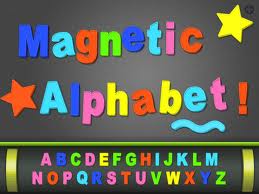
With my children that are still struggling with naming letters and sounds, we have been working with our Magnetic ABC appThis $1.99 app has upper and lower case letters and numbers.  It also has themes and objects available for use.  As an ABC practice activity, I call out an upper case letter and they choose it and put it on their board.  We scroll to the lower case letters and have them find the matching partner letter.  Sometimes I call out a letter sound and they have to find the letter that makes that sound.  Students who know their letter sounds practice with this app also. They can choose one of the objects and then match it’s beginning sound.   I can give them a CVC word and we stretch it out.  As they hear those sounds, they choose the corresponding letter. We can create word family words also.  The ability to use letters more than one time is a bonus.   More advanced students can make sentences dictated to them by either me or a partner.

The app also has numbers and objects.  Students can practice their numeracy skills, 1:1 correspondence, addition and subtraction, making sets less than, greater than or equal to, and patterning.  My students seem to enjoy the iPad version of this so much more than the real magnet letters on the cookie sheet that I put out in centers.  It’s also a lot easier to clean up!

Having a multipurpose app that meets a variety of student needs help me build a strong foundation in all students.  We can’t assume that students know these most basic of skills or short change their practice.  Apps that grow with students are efficient and effective.  Students are engaged and learning is underway. While these activities seem so…well, so basic, they are.   It just goes to show you that it doesn’t have to be fancy to be functional and fun!

I’d love for you to leave a comment, subscribe to my blog, and/or share this post with a friend.

Learning Phonics with iPad Apps

Practice is the best of all instructors. -Publilius Syrus

The beginning of every school year brings a variety of ability levels to kindergarten.  I have children who are already reading and some who struggle with just naming upper and lower case letters and sounds.  I’ve stated that the best part of having 1:1 iPads in the classroom is the ability to differentiate for student need.  There are a series of apps by Good Neighbor Press we use a lot in the beginning of the year.

The first app I use is the Upper and Lower Case Letter Matching Pocket Chart.  This has students matching upper and lower case letters.  It takes about 3-5 minutes to complete the cycle.  This is particularly good for my young learners who are still working with this skill.  It is easy to use and engaging as the students are earning stars for correct answers.  It also helps with the ever-confusing lower case b and d identification.  This app is .99

Beyond matching, another app in the series is Matching Beginning Sounds.  Again, this is a 3-5 minutes cycle that is highly engaging and keeps students moving through the app.
Other apps in the series include matching rhyming words, ending sounds, consonant blends and digraphs, word families, compound words, and long and short vowels.

Math apps are also available from this publisher.  There are apps for shape matching, position words, counting 1-20, number and number words matching, fractions and single digit addition and subtraction.  Each of these apps can be purchased individually, or for $4.99, you can purchase Pocket Charts Pro and receive all 20 games in one app!

One of the reasons I like this app is because pocket charts are common in many classrooms.  These apps are recognizable activities that don’t require a lot of front loading to use.  It also give you a quick sense of an individual child’s abilities.  While I may have 1 or 2 pocket charts available during centers for students to interact with, having a variety of pocket charts apps in their iPads means no one has to wait their turn.  Instant access!  Because there is a variety of skill levels within the app series, there is virtually something for everyone.  When you can deliver just-in-time-practice to each individual student, you are increasing engagement as well as allowing the child to move at his/her own pace.  Students who are ready to move on aren’t held back by those needing extra practice.  Those needing extra practice aren’t being rushed on by those who are ready to move on.

As I’m finishing the 10th day of school today and finishing up all of my initial assessments, I see I have a wide variety of student abilities.  By using apps such as those in the Pocket Chart series, I know my students are getting practice right where they need it!

I’d love for you to leave a comment, subscribe to my blog, and/or share this post with a friend.