Starting a Student-Centered Classroom

You can’t cross the sea merely by standing and staring at the water. -Rabindranath Tagore

medium_8536426262I recently wrote about incorporating a more personalized approach to learning in my classroom here and how that meant building the plane while I fly it.  I’ve always believed in student-centered classrooms and in many ways, my classroom already had many aspects of voice and choice.  So perhaps I wasn’t starting the plane from scratch after all.

It can be intimidating and sometimes, downright paralyzing, to consider changing an entire classroom management system.  At the core of it all, you have to decide what you truly believe about teaching and learning before making any kind of shift.  Once you have made the decision to make meaningful change, start small.  Look at what you are already doing and see if anything resonates with student choice.  One of the biggest concerns of many educators is what to do with the other students while you are working with small groups.  These choice boards for centers were already in place in my room:

photo 1

photo 2

These center boards for morning and afternoon help me begin choice in kindergarten.  Students are in center teams and they are assigned these centers during 3 rotations in the morning while my assistant and I teach small reading groups and during 3 rotations in the afternoon while we work with small groups of writers. The rotations last 20 minutes each. Even though they are assigned their centers on these boards, once they get to those centers, they have multiple choices of activities to work with.  At the ABC center, they have 8 hands-on activities and one cubby has 2 iPad passes that allow the students who choose them to work on their iPads on ABC/phonics activities.  The math and games center works similarly.  They have 8 math manipulatives and fine motor activities to choose from as well as 2 math iPad passes that allow those students to work on math apps.  Here are photos of those 2 centers:

ABC center

ABC center

Math and Games

Math and Games

So in a given day, each team would rotate through these centers: ABC, writing, math, reading, and 2 rotations of choice.  Choice centers are housekeeping, blocks, legos, science, art, and painting. (I’m not a huge fan of the paint so they often have markers or chalk here.)  This controlled-choice helps students learn through a gradual release of responsibility.  It’s not chaotic and the kids start learning how to handle multiple choices in a structured way.

As we get a few weeks of school under our belts, and expectations, routines and procedures are more established, I start adding some choice into other areas of the day.  Students may choose books in the book center, or iPads for reading.  They may also choose writing on paper in the writing center or on the iPad.  (Note: with my kindergarten students, we still use paper and pencil for Writer’s Workshop all year.  I want them to develop those writing skills.)

By early January, we are able to move away from those choice boards and move into students planning their day and making their own schedules.  I will write more about this a little later.

Standing on the edge and trying to wrap your head around change is a little scary but I also find it a bit exhilarating.  When I saw my students embracing choice in the classroom, I found I was eager to incorporate their voice and choice in other ways.  It made it a lot easier for me to push forward and try new things.

Don’t stand back and look at the water…stick your big toe in and wade around a bit.  Come on in…the water’s fine!

Today we will do exciting new things.  Let’s get to it!

Initial photo credit: Creative Commons


1:1 iPads and Student Centered Classrooms

And no, we don’t know where it will lead.  We just know there’s something much bigger than any of us here. -Steve Jobs

It never gets old.  Even after 3 years of 1:1 iPads, the magic and wonder of my students’ engagement and learning excites and motivates me daily.  Having a student-centered classroom makes my job so much more interesting and meaningful.

Trent's photosynthesisWe have been learning about fall and fall leaves this week. Living by the ocean in the south, we have about 2 weeks of fall.  The leaves are green, then they are a little yellow, then brown and on the ground.  We don’t get to enjoy the rich colors of our northern neighbors.

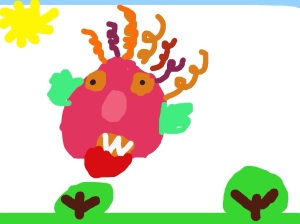
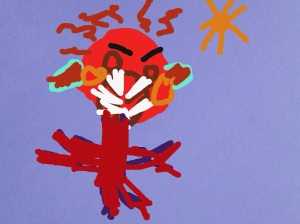
Today,  I was reading a non-fiction book about leaves and it briefly touched on photosynthesis.  Knowing this concept was a bit advanced, I kept reading, and didn’t stop to discuss photosynthesis.  However, just like our recess snail episode, the children were fascinated with this large word and had many questions.  We started a wonder chart on this concept.  How does the tree live through the winter if there aren’t leaves on it to make food?  Is the sugar that the leaf makes during photosynthesis the same as the sugar we eat?  We looked at other books and found pictures on the internet.  We talked and wondered, wondered, and talked.  During their free choice time today in centers, several drew pictures about this concept.  Some chose drawing paper, some our Drawing Pad app. (See drawing at the top of this post.) Some even put their drawing into Explain Everything and talked about it there.  Here is one of those examples:

The only planned part of this day was the reading of that initial book.  The rest was courtesy of my curious children.  By being in tune with my students, I was able to go with their flow (which, by the way, was far better and more meaningful than anything I would have had them do.) As I look back on our fall unit in previous years, before iPads, the learning wasn’t nearly as rich or in-depth.  Of course, the iPads alone didn’t do anything.  They have served as a conduit of change for ME.  Over the last 3 years, I’ve changed and in turn, my teaching has been transformed.  It’s not about the iPad, but it is about a shift in the way my classroom works.  The learning environment is completely different and it continues to evolve.

Just like Steve Jobs, I have no idea where this will all lead.  I just know there is something bigger than all of us here…and THAT is exciting!

Today we will do exciting new things.  Let’s get to it!


The Choice is Yours!

Tell me and I forget. Show me and I remember. Involve me and I understand. -Chinese Proverb

Would you want to work in a place that gave you no voice? Would you want to teach in a school that allowed you no autonomy in how you teach? What if your every day was prescribed as to what you would do, what you would say and how you would say it…

medium_2699584043As professionals, we become offended when the “higher ups” in education make decisions that affect us without including us in the decision making.  Even professional development is terribly ineffective when we just “sit and get” without any input.  Would an artist paint very often or very well if the subject of the painting was always assigned? Of course not. So why are we so reluctant to give our students choice in how they learn?

Choice.  It’s meaning is clear: an act of selecting or making a decision when faced with two or more possibilities. Choice.  It’s not just for adults.  Alfie Kohn writes a good article here about choices for children in learning.

To be clear, there is a difference between choice and free reign.  Without some control and teacher facilitation, it can be pure anarchy. Setting up the learning environment to allow for student choice is critical.  You would never open a closet to a 3 year old and ask them what they want to wear.  You would ask, “Do you want to wear this or this?”  In my room, we begin with simple choices and through a gradual release of responsibility, students eventually have multiple choices all throughout the day.

Last week we were working on the pumpkin life cycle.  By Friday, everyone was ready to show me what they had learned.  They were given 2 choices.  They could show me in Pic Collage or in Explain Everything.  Later, they will have other choices, but for now, 2 is all they need.

photo

Instructions were on the Smartboard and everyone was hard at work!

photoThis is one of the examples from Pic Collage.

This is one of the examples from Explain Everything.

When given choices, students engage and take ownership.  By learning how to make choices and make decisions at a young age, they are better equipped at these skills as they get older.  When children learn to think for themselves, they are also less likely to be easily led by others whose choices may not be as desirable.

We want our students to love the content…to love learning.  By giving choices we lessen the chance of burnout (for both students and teachers), and we increase the chances of engaged, independent thinkers.  None of us like to be told, “You have no choice in the matter.” Instead, let’s work toward, “The choice is yours!”

Today we will do exciting new things.  Let’s get to it!

One Way Sign Photo Credit:  Creative Commons


Creativity and the iPad

Children see magic because they look for it. -Christopher Moore

“Stop acting like a child.”  How many times have you heard that or said it?  The implication is negative, the behavior undesirable.  Why is it that society has deemed being child-like as a bad thing?  Certainly, some childish behaviors are less than desirable but children have unique vision that adults seem to lose as we age.

IMG_0722Part of that ability to have imagination comes from not being afraid to be wrong.  Creativity and imagination spur innovation.  What if we could organize and prepare like an adult but think and create like a child?

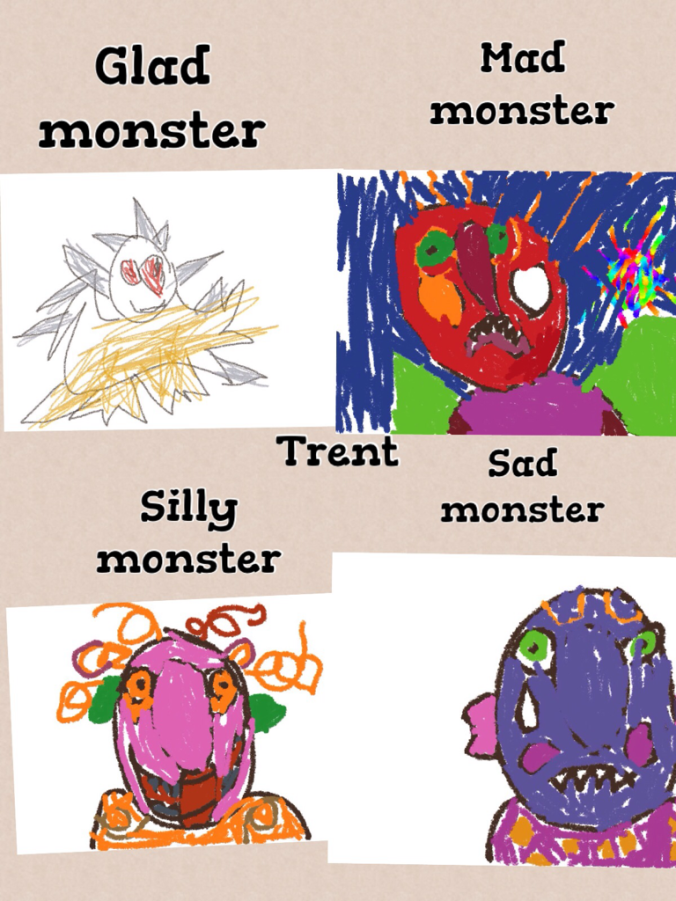
We just finished a fiction unit on Monsters.  We had fun reading several fiction stories such as Go Away Big Green Monster  and Glad Monster, Sad Monster. The children’s conversations in centers and in various activities were filled with imaginative scenarios involving monsters all week. This was also a great time to incorporate feeling words and describing words into our mini-lessons.  As we made anchor charts with some of these words, the children could refer to them all week in their reading and their writing.

Children are so adept at pretending.  They are missing those filters of self-IMG_0724consciousness that adults have so firmly in place.  Adults often feel they “aren’t creative” because they have become so adept at avoiding being wrong. I love listening furtively to the conversations that go on in our housekeeping center.  The social skills developed in this center are invaluable.

As we worked on our monsters all week, we created our own “feeling monsters” in Drawing Pad, then uploaded them into Pic Collage. Some even went a step further and uploaded their Pic Collage into Explain Everything. (We have finally started our App Smashing!)  The iPads allowed us to create and innovate as we added some voice to our writing all week.  IMG_0725

All of us, adults and children alike, have the ability to use our imaginations. We tell others, you can do anything you set your mind to…but do we believe it about ourselves?  Imagination isn’t just thinking outside of the box.  It is acting on those “what if’s”.

In educational times of increased non-fiction requirements, we enjoyed taking a break and delving into monsters.  Instead of writing them off as not-real, my students embraced the opportunity to pretend, create, write, and explore “monstrous” possibilities.

We love using our iPads as creation tools.  The only limitation is our imaginations.  My students found theirs to be of “monstrous” proportions!

Today we will do exciting new things.  Let’s get to it!

Engaging Students with Explain Everything

If you can’t explain it simply, you don’t understand it well enough. -Albert Einstein

The blank stare…You know, the one that either says, “I have no earthly idea what you are talking about.” or “Why are you telling me this? I already know it.” I suppose there is one other possibility. Anyone? Anyone? Bueller?… Utter and complete boredom. Misconceptions and lack of engagement can both derail the learning process.

IMG_2265One of the apps we use really gets to the heart of both of those concerns.  I’ve written about Explain Everything before. It really is a robust app.  The best part is that it is easy enough for my 5 year olds, yet just as relevant and engaging for older students.  I’ve even seen a few adults having a great time creating a screen cast in this app. We used this app weekly last spring.  This past week was the first time we used it this school year. We’ve been learning about Spiders in science.  My students all drew a detailed spider picture in our Drawing Pad app and saved it to the camera roll. Then they uploaded it to Explain Everything.  We’ve been working on labeling like a scientist in our Writing Workshop so they labeled their drawings and then they recorded themselves telling about their work.  As I was showing this app to a small group, their eyes widened and they were immediately interested in doing their own.  They were very excited and had great conversations amongst themselves as they discussed the length/width of the arrows used to point to their objects.  Should it point this way or that? What if they moved this over there? Noticeably absent were questions directed at ME.  Even though this was their first time using this app, they were busy figuring things out themselves and working through ideas, thoughts and questions with their peers.

This first time with Explain Everything was very successful.  After completing their assignment, they uploaded it to Showbie where I could then see and listen to each one.  As the year progresses, Explain Everything will always be one of their go-to apps to share with me what they have learned.  As we work on unpacking standards and demonstrating learning, my students have voice and choice in how they want to document what they know.

While iPads are often thought of as a consumptive device, through the use of creation apps, students are able to create their own content.  Explain Everything allows students to create both simple and complex presentations in an engaging way in any subject. Our first product this week is more simple but they will become more complex as the year goes on.  This is Caitlyn’s Explain Everything:

Want to lose the blank stares? Engage students, get to the heart of what they know and don’t know, and stimulate their minds and their conversations.   Any takers?  Anyone?  Anyone?

Today we will do exciting new things.  Let’s get to it!

Using iPads to Supplement Reading

We shouldn’t teach great books; we should teach a love of reading. -B.F. Skinner
“Seriously!  Do I have to do ALL the work around here?” This is a quote from a child in my housekeeping center recently that made me laugh.  She was definitely channeling another adult in her life…but it is a sentiment I’m sure we have all thought, expressed, or hollered at some point in both our personal and professional lives.  Wouldn’t it be great if the great Work Fairy came down and waved her magic wand?  Wait…wouldn’t it be great if there WAS a great Work Fairy???
C0010258 StudyingAs educators, our  “In-Basket” tends to overflow with things we want to do, have to do, and need to do.  It is hard to find time to do it all.  With reading and literacy as a huge focus in early childhood classrooms, it can be difficult to meet the needs of each child.  We use the Fountas and Pinnell guided reading approach but I supplement with extension activities on our iPads.  This helps me reach all of the needs of my students.
My students are homogeneously grouped for reading.  These groups are small (4-6 students) and are flexible.  They change with the particular skill we are working on.  With my struggling children, we use games, manipulatives, flash cards and apps to immerse them in phonics skills.  Some of the apps I’ve been using that have been helpful are Starfall ABC’s, Starfall Learn to Read, Word Wizard and Montessori Crosswords.  These apps provide strong emphasis on phonics skills.
My middle group and top groups are working on sight words, blending sounds to read words, and integrating strategies to read unfamiliar words.  They are reading on Level A at this time.  I have several level A readers in my room, but I’ve created some to go on their iPads in Book Creator so they have them at their fingertips when they have a few minutes to read or when they go to the Reading Center.  Here is one using sight words
This is a PDF version since not all of my readers have Book Creator.  Some of the books I’ve made include me reading the text.  Students can touch the speaker icon on the page and hear me read the story to them.  The I Can See Book does not have that feature.
By using the iPads to supplement skills in reading, I’m able to work with students on various levels and let them move on when they are ready.  This actually reduces my work load considerably and frees me up to have conferences with individual students and work with individual students in a more meaningful way.  Work Fairy or not, less teacher work and more time with students is a beautiful thing!
Today we will do exciting new things.  Let’s get to it!
photo credit: Creative Commons

Show Me With Showbie

We are not cisterns made for hoarding, we are channels made for sharing. -Billy Graham

Sorry, but I just can’t get enough of Showbie.  It is our new app used school-wide for creating digital portfolios.  I recently wrote about Showbie and our using it to create digital portfolios.  Since then, I have discovered some other pretty awesome features.

First, let me say, we are not completely paperless.  We have, however, significantly reduced our paper usage and Showbie has facilitated that.  In kindergarten, there is still the need for paper/pencil skills.  School-wide, we saved over $21,000 in paper usage, copies, ink, and toner last year.  Showbie has several features that are helpful.  Here is a screen shot showing some features:

photo

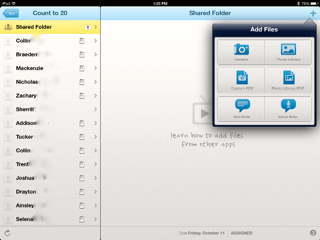
I have blurred out my students’ last names, but my class list is to the left.  The small paper icon to the right of each name shows which students have submitted an assignment.  You can also add student pictures beside their names if you want.  The shared folder allows me to upload resources, videos, voice instructions, PDF files, and ePubs to be used in that particular assignment.  Once the resources are loaded in the shared folder, it is available to all students.  It is in the shared folder that I added an ABC book that I created in Book Creator.  My students just went into the shared folder, downloaded the book in their iBooks and all students have the book on their bookshelf.

The area to the right has a drop-down box with choices for adding files. The camera option allows photographs or videos.  You can upload images from the photo library as well.  Using the Capture PDF option, you can scan in a document.  If you have a PDF file in your photo library, you can upload this also. In addition, you can add text notes to student work or voice notes.  These are all of the teacher options.  Students have the same options in their drop-down menu for putting work in the assignment folder.

Last week, I uploaded a PDF of primary lined paper for my students to demonstrate writing their numbers to 20.  They opened the assignment in Showbie and then used Good Notes (a PDF annotator) to write their numbers.  I was able to quickly email their parents this assignment.  Later in the week, I used the camera option to video tape students counting to 20.  This was a quick assessment that was also emailed to parents.

photoThe best part is that Showbie is so easy to use.  At this early point in the school year, my kindergarten students already know how to open the app and upload work on their own.  Parents also enjoy feeling like they are a part of the classroom through the email feature.

One last way we are using Showbie is to share student work with our principal.  Each grade level decided on student assignments for each nine weeks that would be used to demonstrate growth and demonstrate CCSS. My principal created a class for each grade level in Showbie.  These student provisos are uploaded for him to monitor.  We send a high, medium, and low work sample each nine weeks.  This allows him to check in on student work on a regular basis.  It also encourages meaningful use of the iPad in the learning environment.

We are very excited about the incorporation of this robust program into our classrooms.  There is a free version of Showbie if you would like to check it out. We liked it so much we purchased the school license.

Today we will do exciting new things.  Let’s get to it!


Making Your Mark With iPads

Do not go where the path may lead; go instead where there is no path and leave a trail. -Ralph Waldo Emerson

medium_4176075327Well, we missed it.  International Dot Day was September 15th.  Better to be late than not go at all, we celebrated making our creative mark this past week.  It came at a good time.  I’ve been hearing a lot of “I can’ts”  lately.  If you are unfamiliar with the story of The Dot by Peter Reynolds and International Dot Day, you can check it out here.  In the story, Vashti is an uninspired student who feels as if she can’t draw.  Her teacher encourages her to be brave enough to “make her mark”.

Leaving our mark is a lot easier than we think.  We make it hard.  We resist and tell ourselves we aren’t smart enough, creative enough, talented enough, rich enough…but what if we took a page from Vashti’s playbook and just tried?  As educators, we make lasting marks with every child we teach.

As we started using iPads in our classroom in 2011, there was no real path to follow.  We trail blazed our own.  There were a few bumps along the way, but we believed in what we were doing.  We started with our own “dot” and it has transformed the way we do everything. It has transformed the way we think about everything.

So back to our dot project…after reading the book, we used our iPads to create our own dots in our Drawing Pad app.  (We usually use Doodle Buddy, but they have not updated the app lately and it doesn’t work very well with the new iOS 7 update.) The kids uploaded their dots to Showbie and I then downloaded them all on my iPad and put them into Book Creator.  As you may know, my love  for Book Creator is epic.

Our finished product is here:

The Dot

The great thing about Showbie is there are “shared folders” with each assignment.  After I created the class book in Book Creator, I uploaded it back to the shared folder in Showbie.  This made the book available to each student and all they had to do was download it into their iBooks.  Now each student has a copy of our class book in their iBooks shelf.  They have loved looking at each other’s work and are definitely proud of their own.

You know, a lot has changed for me since I said, “yes” to iPads 2 1/2 years ago.  I never dreamed I would be doing the things I am.   I chose to try and make my mark by creating a student centered classroom infused with technology.

How are you making your mark?

Today we will do exciting new things.  Let’s get to it!

Dot photo credit 

Collaborative Work Spaces

Unity is strength… when there is teamwork and collaboration, wonderful things can be achieved. -Mattie Stepanek

medium_4264216476So I’ve been thinking a lot lately about collaborative spaces and their importance and relevance in learning.  Early childhood classrooms are collaborative by nature and the furniture provided in these classrooms allow for students to be in small groups.  But what about other grades?  Why is this important?

Think about your recent professional development experiences.  Were they in a classroom somewhere with desks in rows or were you at tables where you could easily see your table mates?  By their very nature, desks in rows inhibit conversation, eye contact, and community.  Plus, they are not very comfortable.  I start squirming after a short time in these seats.  The times I’ve been in PD at tables, it is immediately possible to engage in conversation, share, and build relationships.  It just feels better and more personal.

Our students are no different.  They need the ability to learn from their peers, to question, to share, to feel safe in a group and not feel isolated.  When we use collaborative groupings with tables, we are saying we are a community.  We learn from each other and I, as the teacher, am not the sole disseminator of knowledge.  The room arrangement instantly, and silently, shares your values as an educator.

As we use iPads, students are immediately collaborative.  They want to share what they’ve done, and in doing so, their peers are able to participate in the collective wisdom of the group.  Collective wisdom…so important for students and adults.  The saying, “It takes a village to raise a child” applies to many aspects of growing children.  No where in that saying does it say “the village” has to all be adults.

As an adult, when I have to learn in isolation, I find myself sometimes feeling anxious.  Especially if the concept is complicated.  I may even feel like I just don’t get it…what’s wrong with me?  Everyone else seems to get it.  In collaborative learning, I might find that others don’t understand either.  This immediately relieves anxiety knowing I’m not alone.  As a team, we figure it out together.   All students, from the smallest to the tallest, need to feel safe and supported in learning new content.  By having the ability to work collaboratively, in a space that supports collaboration, students are more likely to take risks.

IMG_2156My classroom has many collaborative spaces.  There are tables that seat 4 and 6.  I’ve pushed 2 rectangular tables together for a larger collaborative space.  There are rugs and pillows on the floor that allow students to spread out and be comfortable.  As I stated earlier, early childhood classrooms are equipped for collaboration.  I recently saw this video on Edutopia showing how a middle school teacher used what was already in his classroom to make the space more collaborative for his 35 students.

Take a good look at your classroom design and see what it says about what you value as an educator.  Student input is also valuable.  What changes can you make to increase collaboration and student engagement?IMG_2176

Today we will do exciting new things.  Let’s get to it!

student desks photo credit: Creative Commons
Creating Digital Portfolios

All I really need to know… I learned in kindergarten. -Robert Fulghum

We started our digital portfolios today.  We knew by the end of last year that we really needed a systematic way of curating student work.  It was important that we be able to share it with parents but it was of utmost importance that it be simple enough for everyone…especially our kindergarten students.  I mean, let’s get real…if I have to touch every iPad to save student work, it just isn’t happening.

Showbie-238x300We went with Showbie.  Showbie allows you to set up your classroom and create assignments for students. When students submit their work, it is organized by assignment.  You can see which child has submitted work and which one hasn’t.  You can even add annotations, voice notes or written notes on the assignment and send it back.  It is very easy to use and individual student work can be emailed to share with parents.

Today, I added our first assignment.  It sends a brief alert to the individual iPad so students can see there is a new assignment.  This is great for older students. My students used Pic Collage and they were asked to choose a number between 2-9.  They added a text box and typed in their number.  Then they added the number of stickers that corresponded with their number.  After the stickers, they added another text box so they could type their names.  Lastly, they learned how to save their work to their photo roll on the iPad.

Library PhotoThey did very well with this activity.  The next step involved going into their Showbie app.  We did this together.  I used Reflector to demonstrate step-by-step on the Smart Board.  When the students opened Showbie, they simply clicked the “+” symbol, then chose their camera roll and then their Pic Collage work sample.  As easy as that, it was uploaded.  The entire activity from start to finish took 25 minutes.  I was then able to email the work samples to parents to share with the their first work sample in the digital portfolio.

The digital portfolios will certainly help us keep things organized and use a lot less paper.  Just as an aside, my school saved over $21,000 in paper, copies, and ink cartridges last school year.  By using digital portfolios, student work is preserved over longer periods of time.

I’m excited about the creation of these digital portfolios.  It will be a great way to organize, view and share student progress.  As we progress through the year, it will also be a great way for students to use their own voice and choice to showcase their work.  I will provide the stimulus.  They will choose the means in which they demonstrate their learning.

Today we will do exciting new things.  Let’s get to it!